I’m writing an article on the Virtual Photography I do to create my fanfic. In the middle of the article, I bring up how easy it is to take screenshots on the PS5: Just hold down the SELECT key.
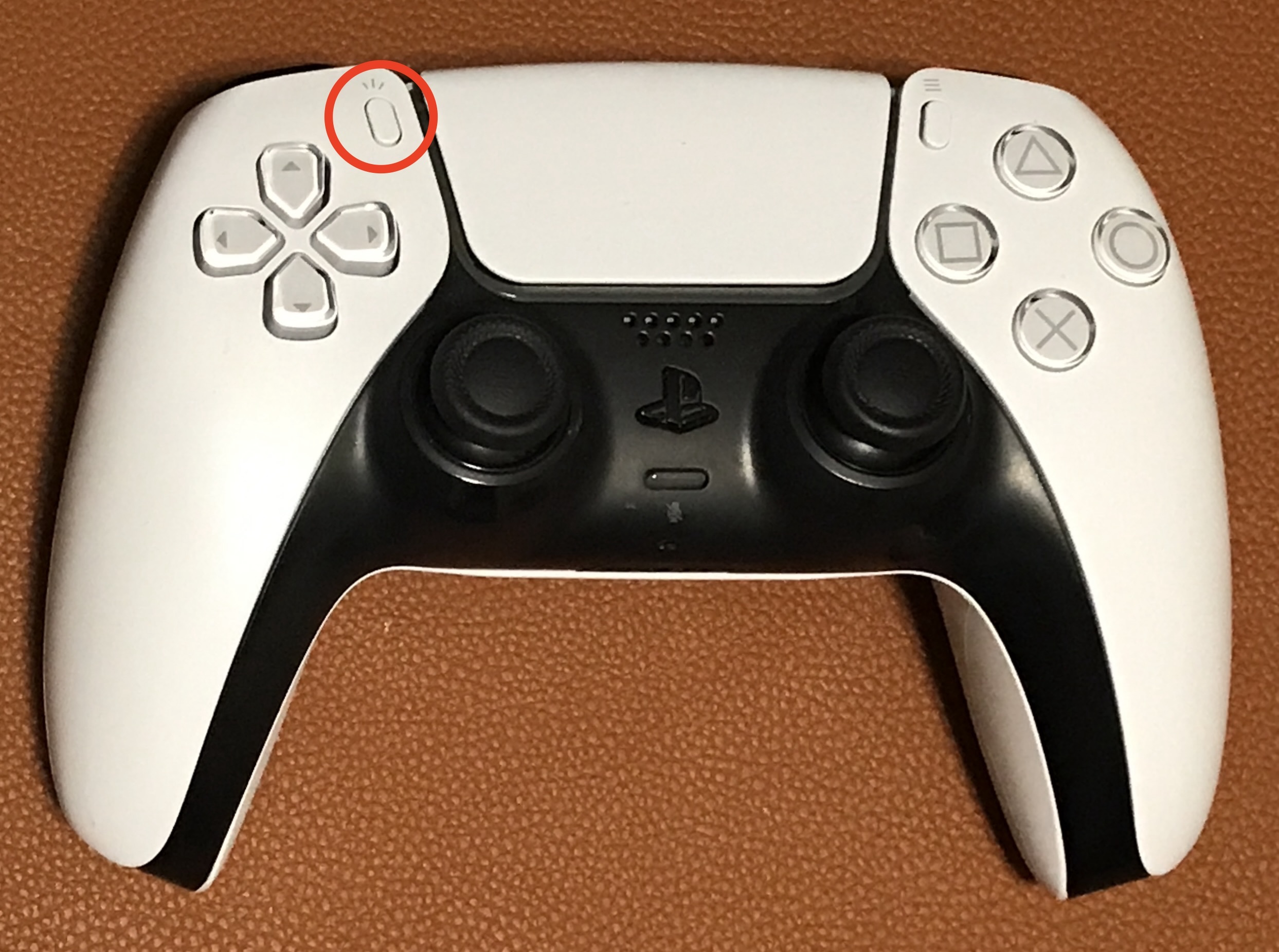
To make sure we’re all on the same page, the SELECT button on a PS5 controller is the one I’ve circled in this image. There’s more than one name for this button, but SELECT is one I’m used to.
When you play a game using Steam, the equivalent button is F12 on the keyboard. However, that’s not as convenient as the SELECT button on the controller (too many therbligs). If you use a controller to play the game on Steam, there’s a non-obvious configuration that will let you re-map that button to Steam’s screen-capture. It’s so arcane that I couldn’t find a simple web page that clearly describes it.
In my original article, I left it at that. Then I realized that I might as well document the procedure myself.
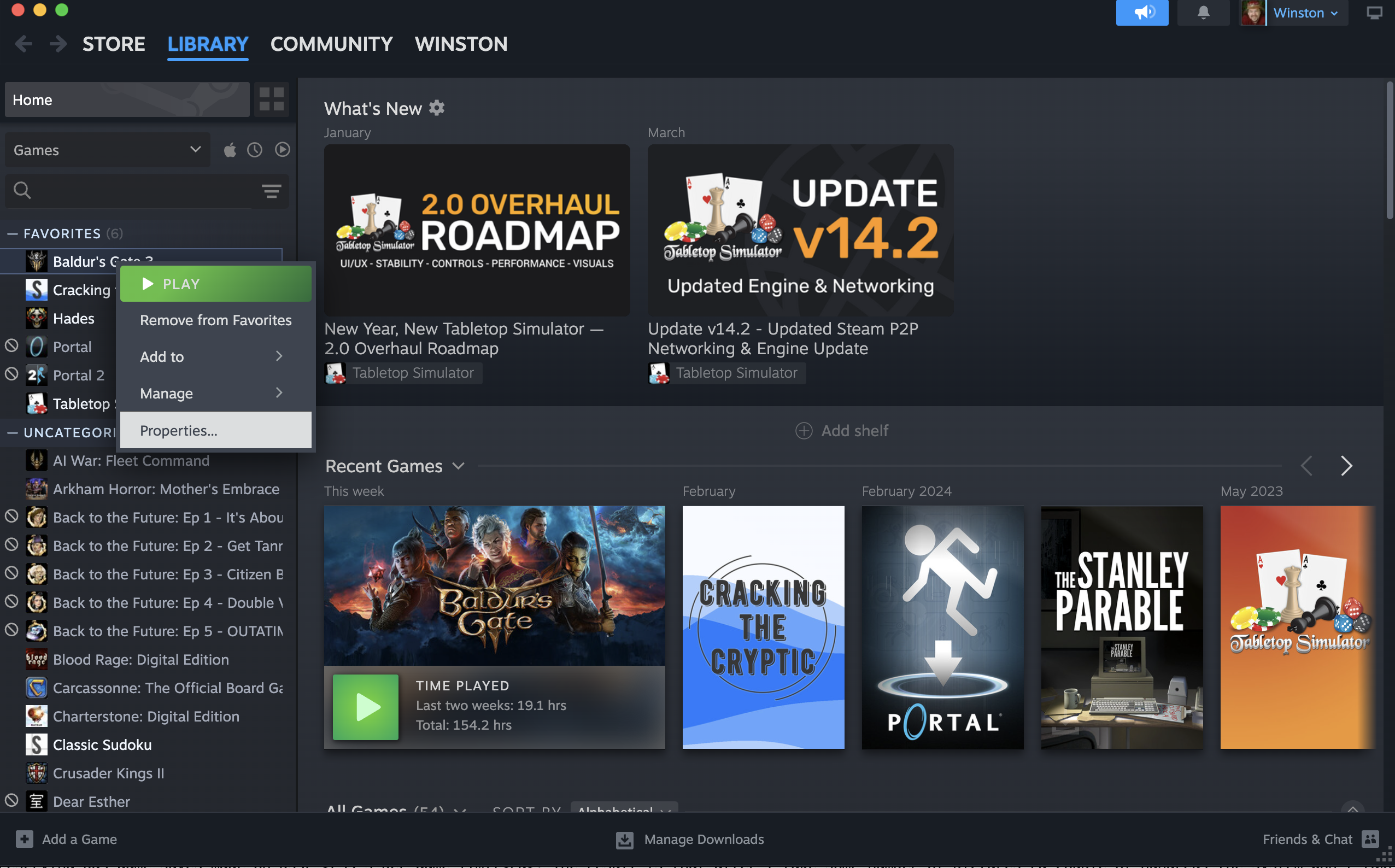
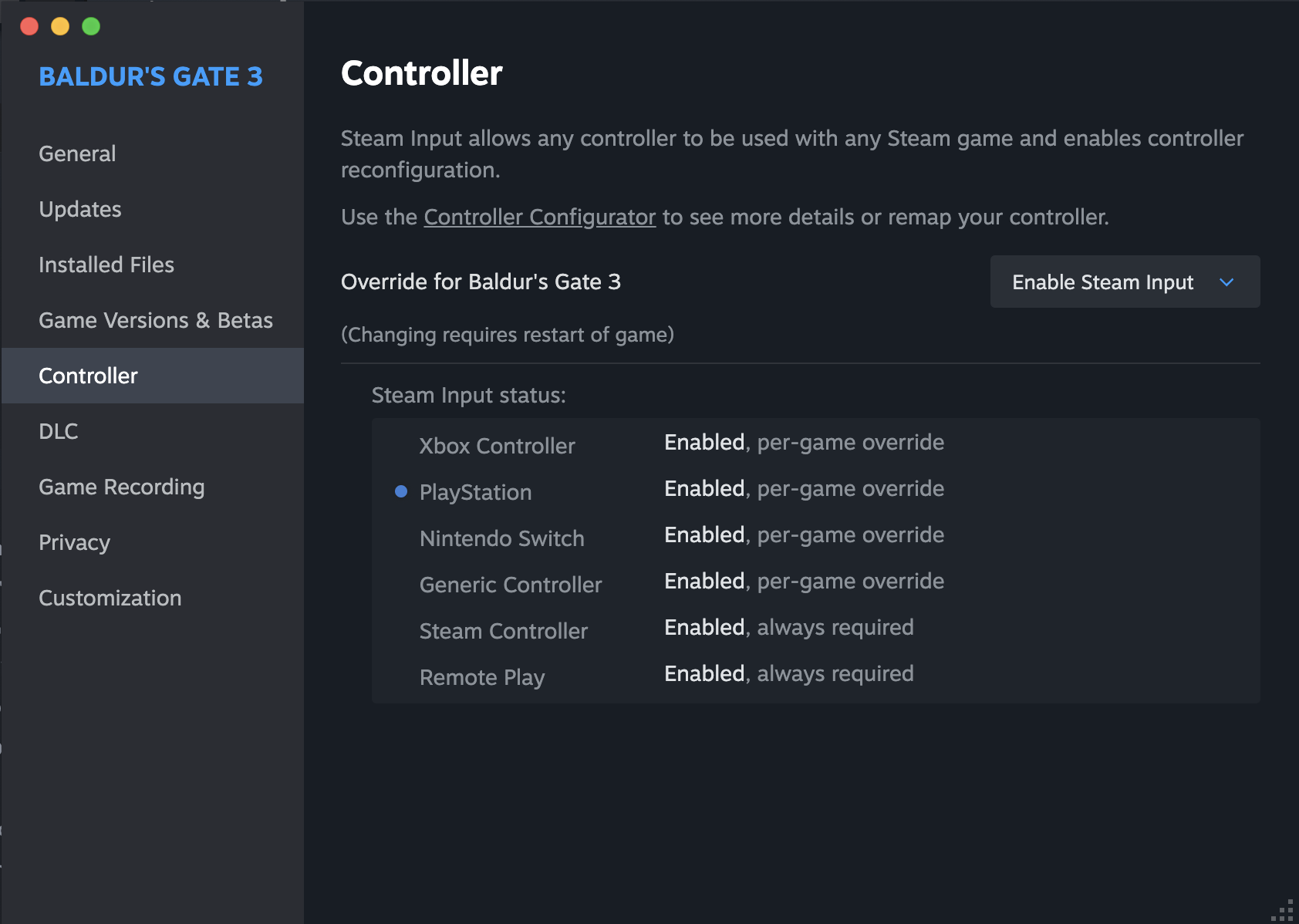
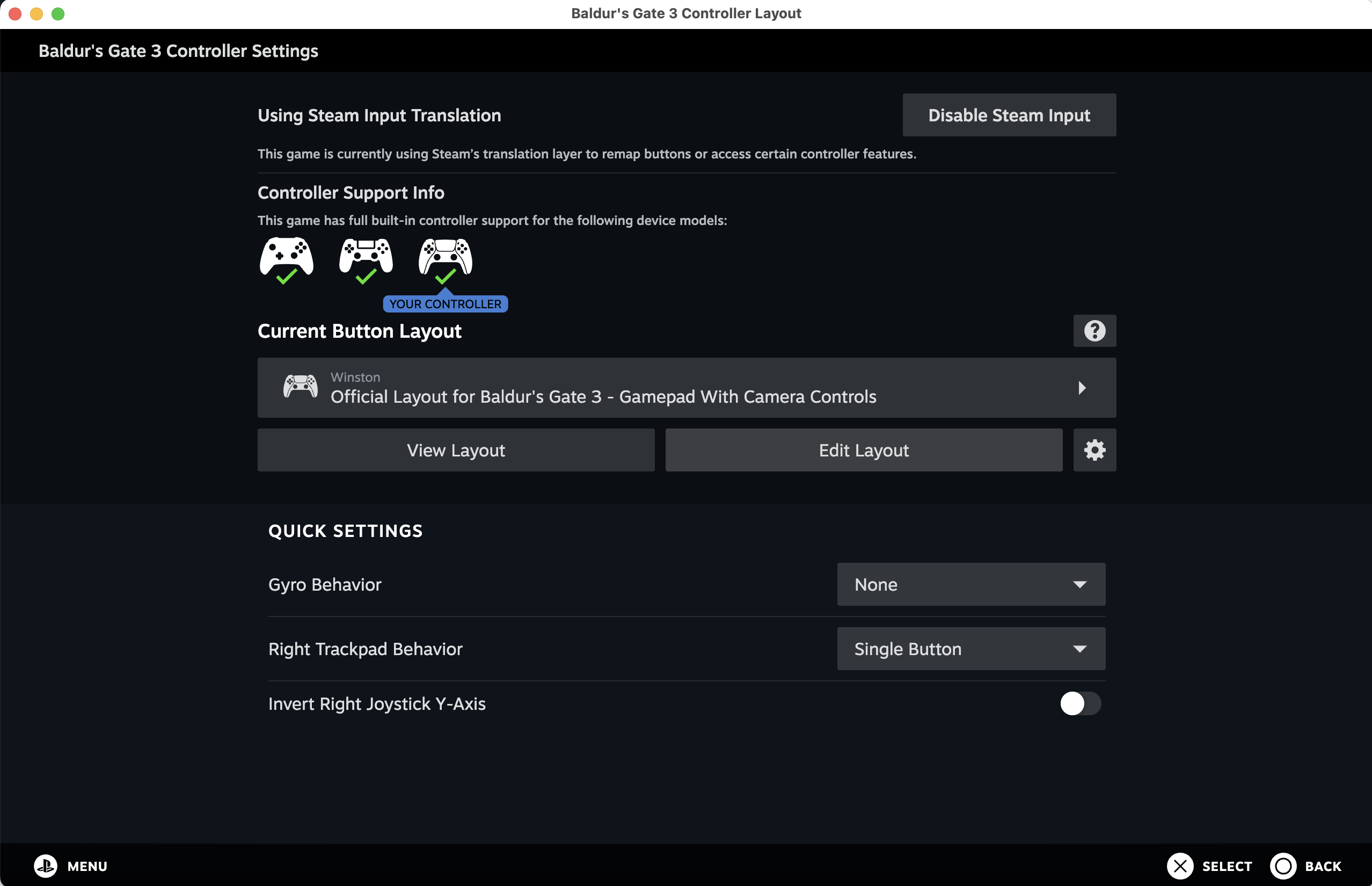
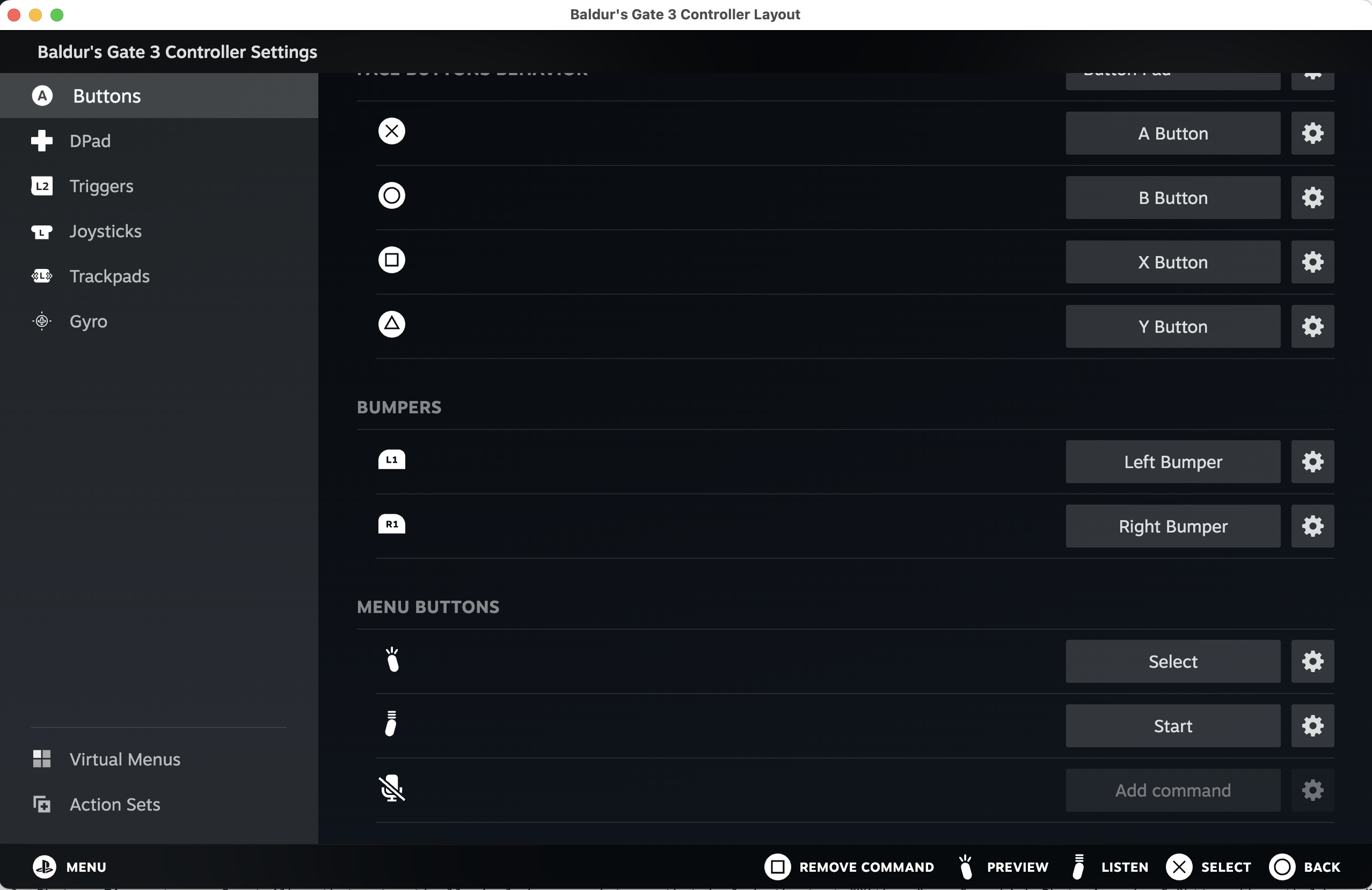
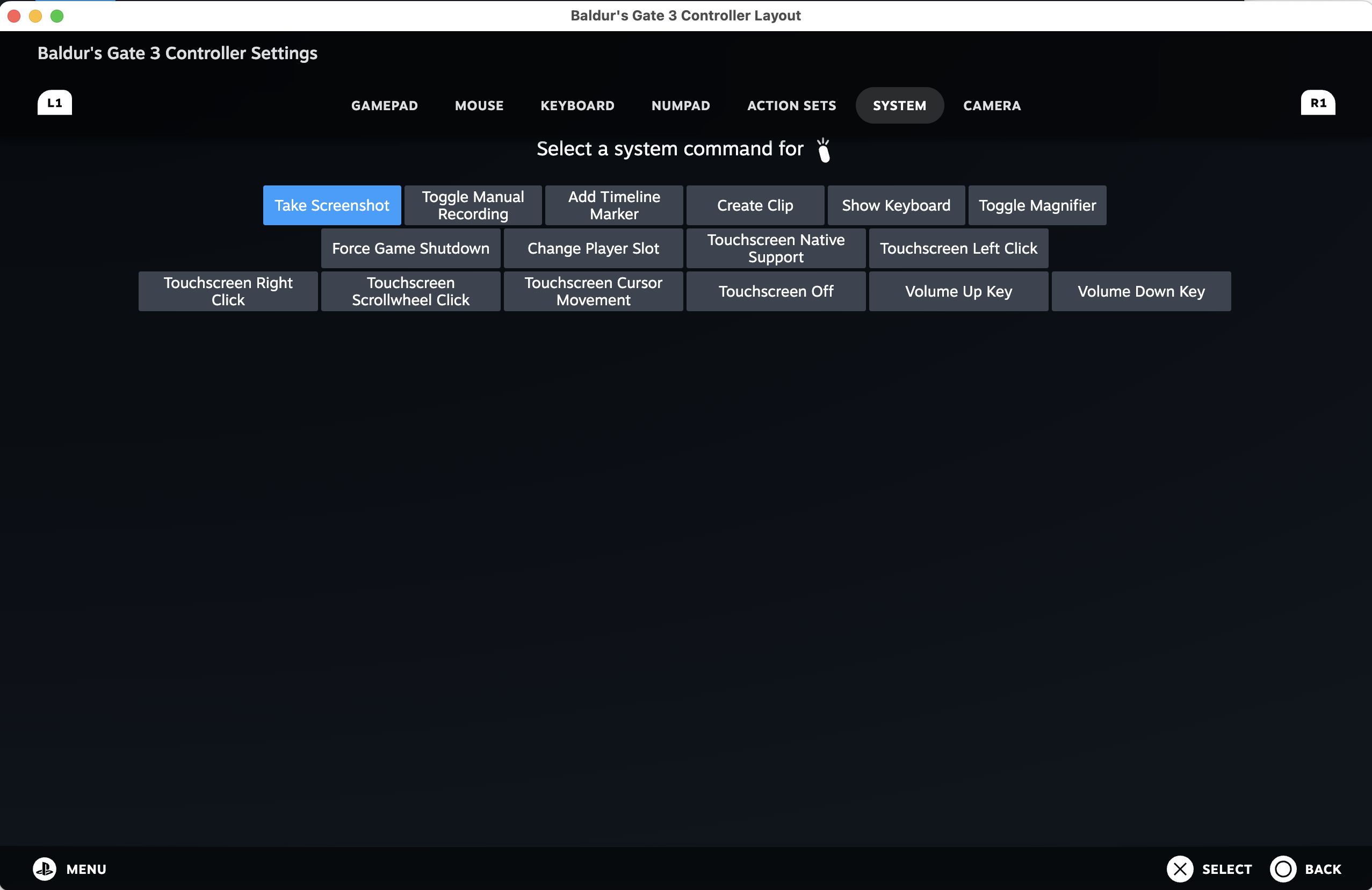
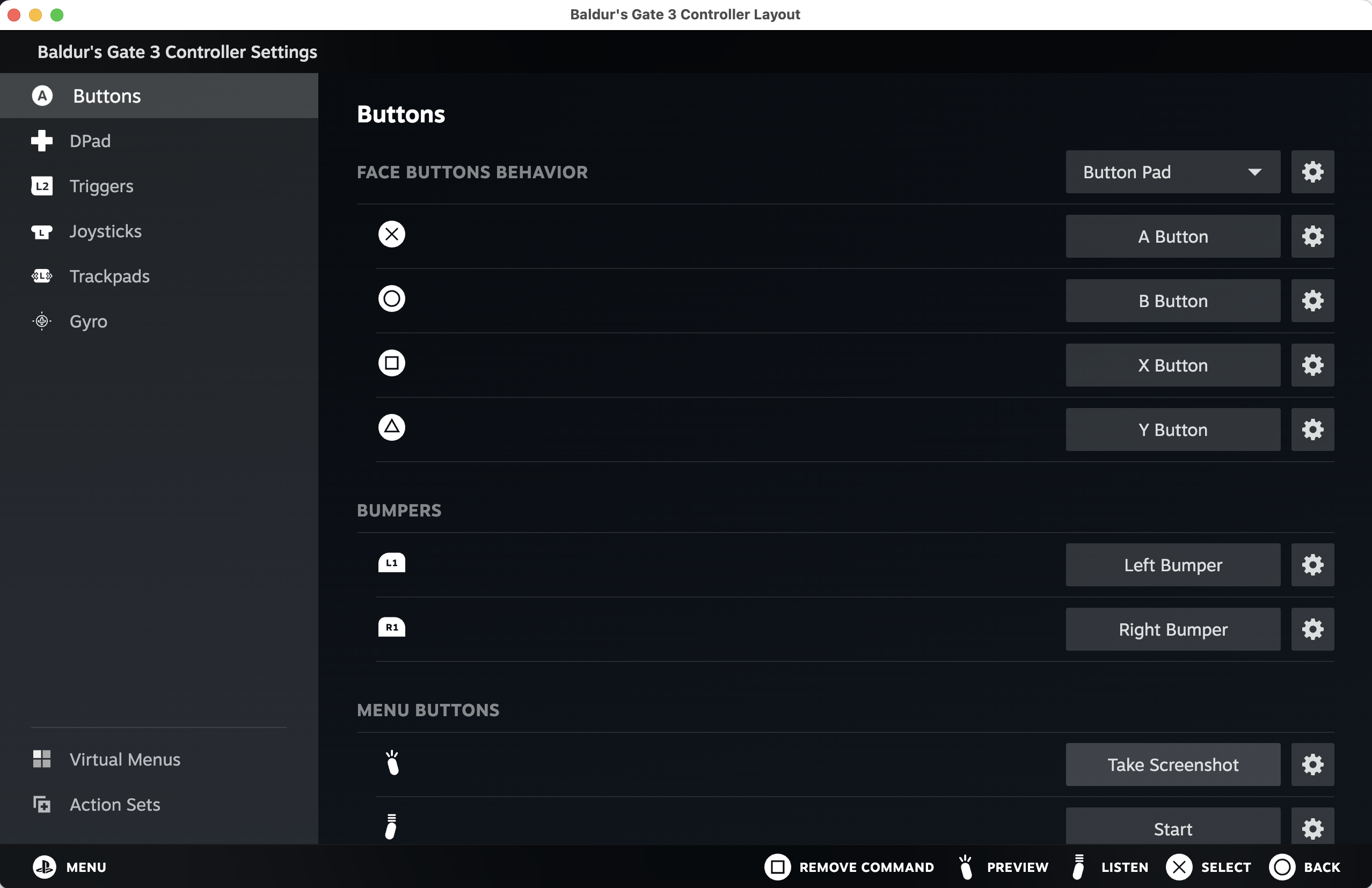
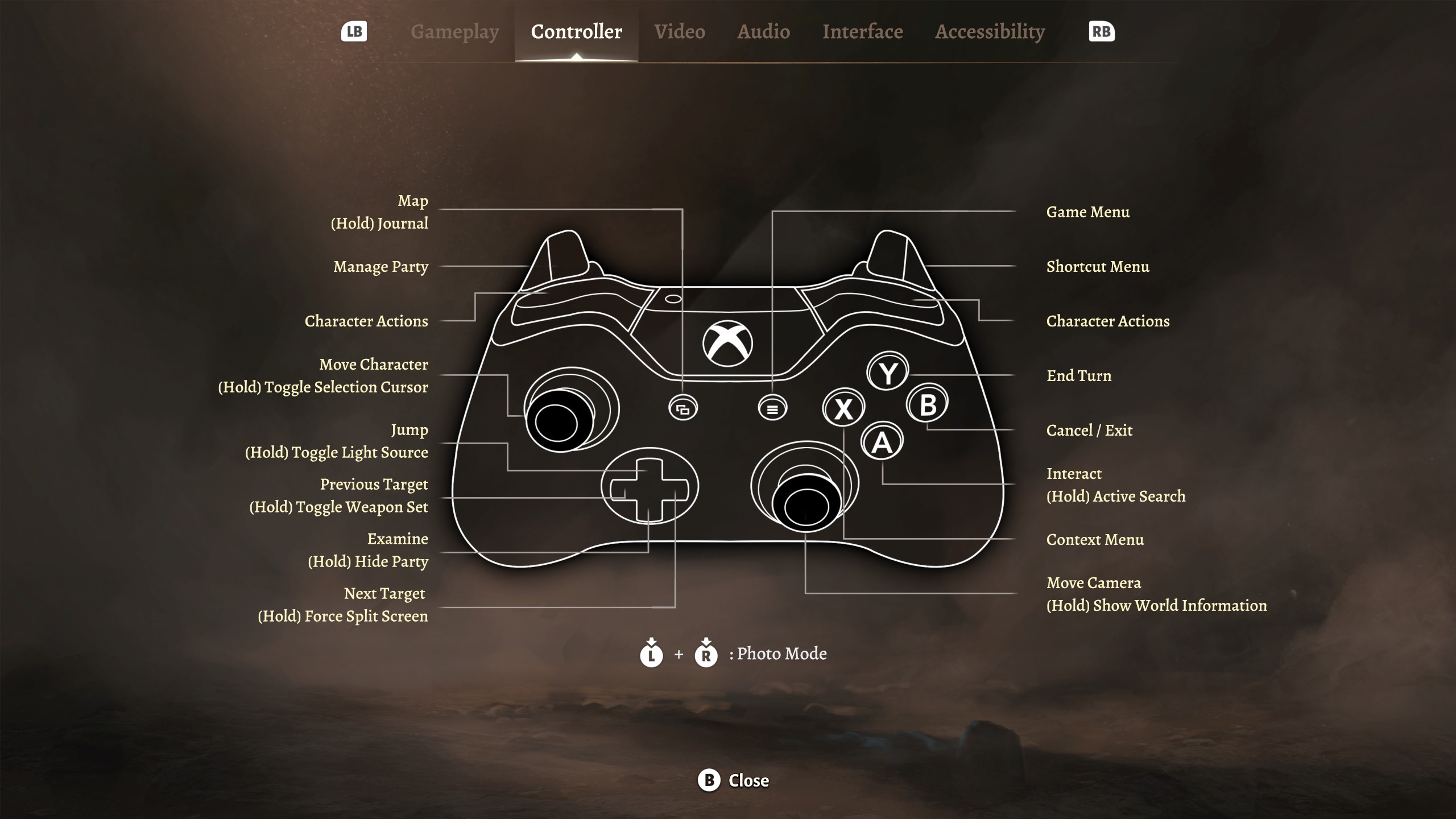
You have to do this separately for each game, because not every game implements its controller interface in the same way. If you’ve read other posts on this blog, it will not surprise you that I’m doing this for Baldur’s Gate 3. In this picture, I’ve right-clicked the game’s name in the library and selected Properties.In the Properties panel, select Controller. If the pop-up on the upper right says Disable Steam Input, then the game implements its own controller interface. That’s good, but (depending on the game) it might not let us redefine a button to take screenshots. So we change the pop-up menu on the upper right to read Enable Steam Input. Then click on the underlined words Controller Configurator in the sentence just above that menu.That will take you to this page. The icons near the middle tell us that this particular game supports different models of controller: Gamepad, Xbox, and Playstation. We’re going to use Steam’s controller support, overriding what’s in the game. Click on the Edit Layout button. Don’t be confused by “Official Layout for Baldur’s Gate 3 – Gamepad With Camera Controls”; that’s something I typed when creating the layout, before I knew that a “Gamepad” controller was something different from a “PS5” controller. I don’t remember at what stage, but you’ll be prompted for your own name for your layout.In the Buttons panel, scroll down to the bottom for the Menu Buttons. The SELECT button (note how its icon matches that on the picture of the controller above) currently has the function Select. That’s what I want to change. Click on the button with the word Select.You’ll come to this panel, with many built-in ways you can override buttons. Click on System at the top, then Take Screenshot. That’s what I want to happen when I press the SELECT button.After that, I see that the action associated with the SELECT button is Take Screenshot. Hurray!Hurray? When I run the game, I see the button icons are associated with an Xbox controller (A, B, X, Y) instead of those for the Playstation controller (X, Circle, Square, Triangle). When I look at the controller options within the game, I see that, due to Steam’s override, the game thinks I’m using an Xbox controller.
Since I play most of my games on a Playstation, it’s annoying to see the Xbox icons when I’m holding a PS5 controller.
Therefore, when I play games on the Mac using Steam, I stick with Disable Steam Input. If I feel like taking a screenshot, I make the effort to click F12. I don’t take many screenshots for Mac games anyway, for reasons that I discuss in my Virtual Photography article (coming soonish).
Pingback: BG3 – Playthroughs and fanfic – The Argothald Journal
Pingback: 007 First Light – The Argothald Journal
Pingback: BG3 – Virtual Photography – 1 of 4 – The Argothald Journal